 AffiliateLauncher
Set up AffiliateLauncher for WooCommerce
This guide walks a WooCommerce store owner through setting up an affiliate program with AffiliateLauncher: install the free WordPress plugin, connect your store, create a commission plan, enroll affiliates, and pay commissions with a PayPal CSV upload file. Commissions are calculated in AffiliateLauncher, not inside WordPress.
Before you start, you need WooCommerce installed and active, a site running PHP 8.2 or newer, and an AffiliateLauncher company. New companies start at Create a company. See the pricing page for plan details. The screens below are from plugin version 0.2.10.
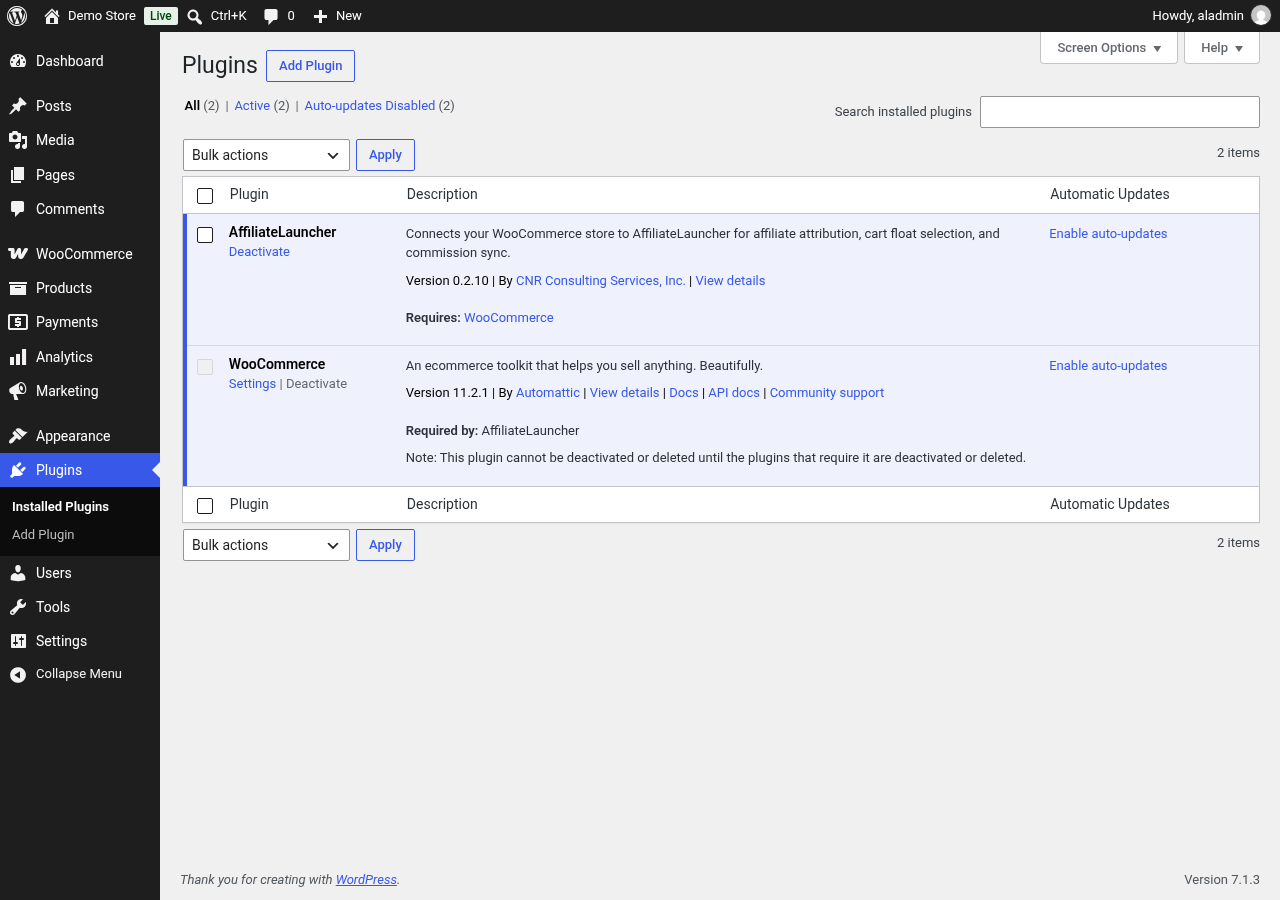
1. Install the plugin
- Install and activate WooCommerce.
- In WordPress, go to Plugins > Add New, search for AffiliateLauncher, then click Install Now and Activate.
2. Connect your store
Add your company values to the plugin
- In AffiliateLauncher, open Settings > WooCommerce.
- Copy the Company site ID. It is the same value as the Site ID on the Company Information settings page.
- Copy the WooCommerce integration key.
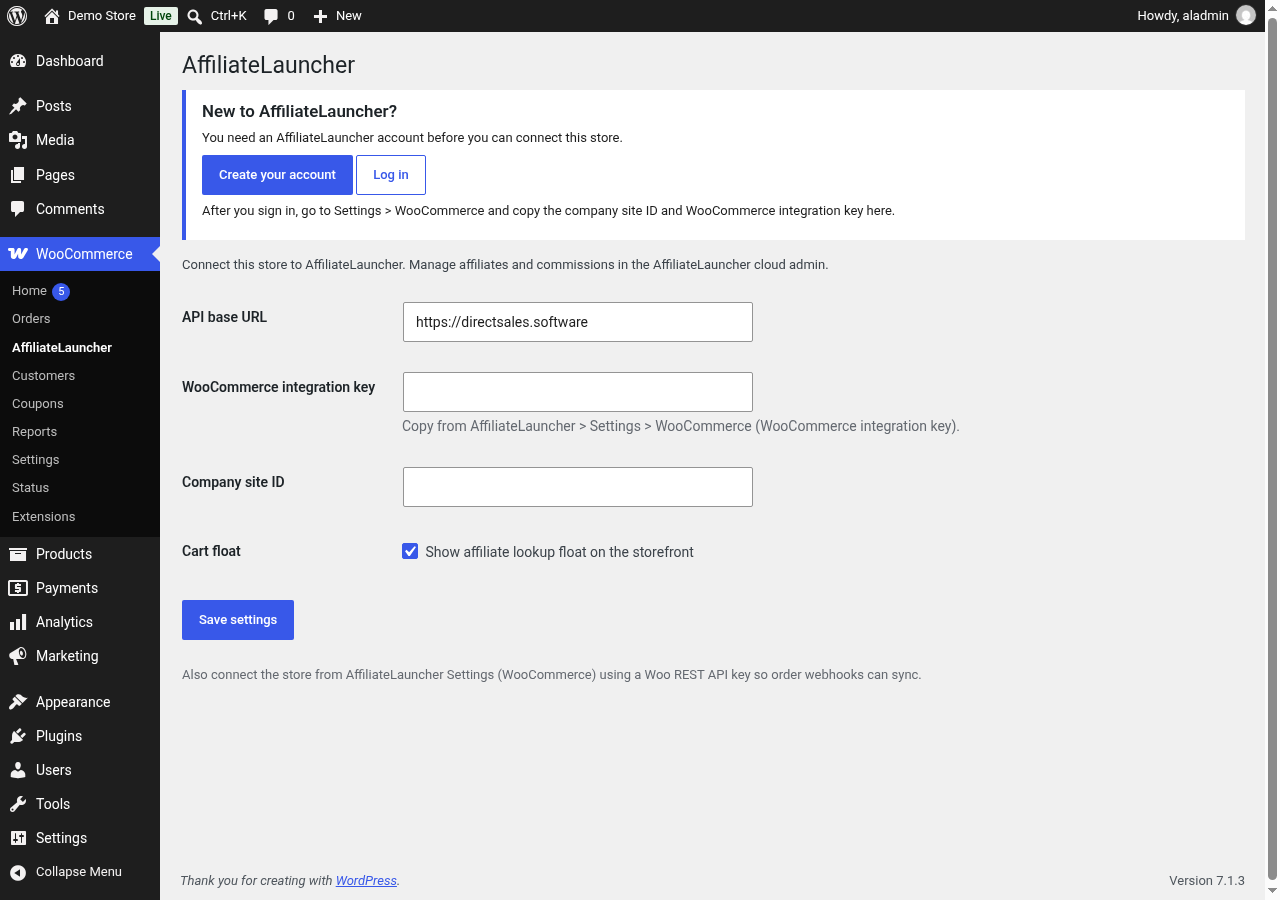
- In WordPress, open WooCommerce > AffiliateLauncher.
- The API base URL is prefilled with https://directsales.software. Keep the prefilled value.
- Paste the WooCommerce integration key and the Company site ID.
- Leave Cart float checked to show the affiliate lookup on your store, or uncheck it to hide it.
- Click Save settings.

Turn on order sync
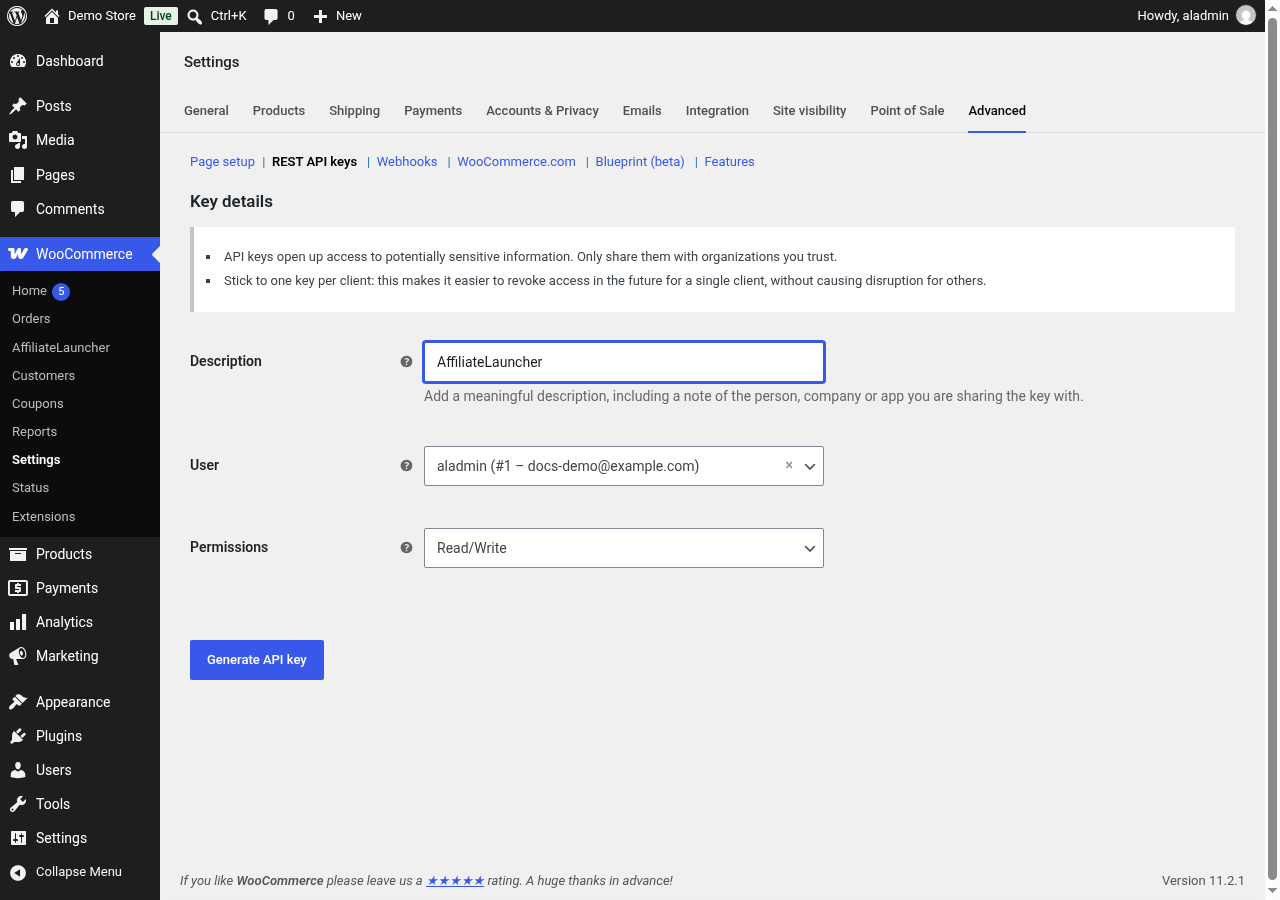
- In WordPress, go to WooCommerce > Settings > Advanced > REST API keys and click Add key.
- Enter a description such as AffiliateLauncher and pick your admin user.
- Set Permissions to Read/Write. AffiliateLauncher needs write access to add order webhooks to your store.
- Click Generate API key. Copy the Consumer key and Consumer secret now, because WooCommerce shows the secret once.
- In AffiliateLauncher, open Settings > WooCommerce and find Connect this company to the store.
- Enter your Store URL. Use the HTTPS address shoppers use.
- Paste the Consumer Key and Consumer Secret, then click Connect.
AffiliateLauncher adds order webhooks to your store. After that, an order placed with an affiliate selected shows up in AffiliateLauncher under Sales, credited to that affiliate. WooCommerce orders are listed as woo- followed by the order number.
3. Create a commission plan
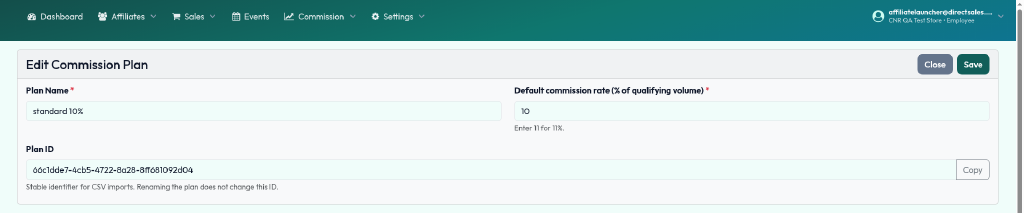
- In AffiliateLauncher, open Commission and click New Plan.
- Enter a plan name and a default commission rate. Enter 10 for 10%.
- Click Save. The saved plan shows a plan ID.


4. Enroll affiliates
People can join from your store, or you can add them yourself in AffiliateLauncher.
From your store
You need the affiliate lookup turned on (Cart float) and at least one active enrollment type in AffiliateLauncher.
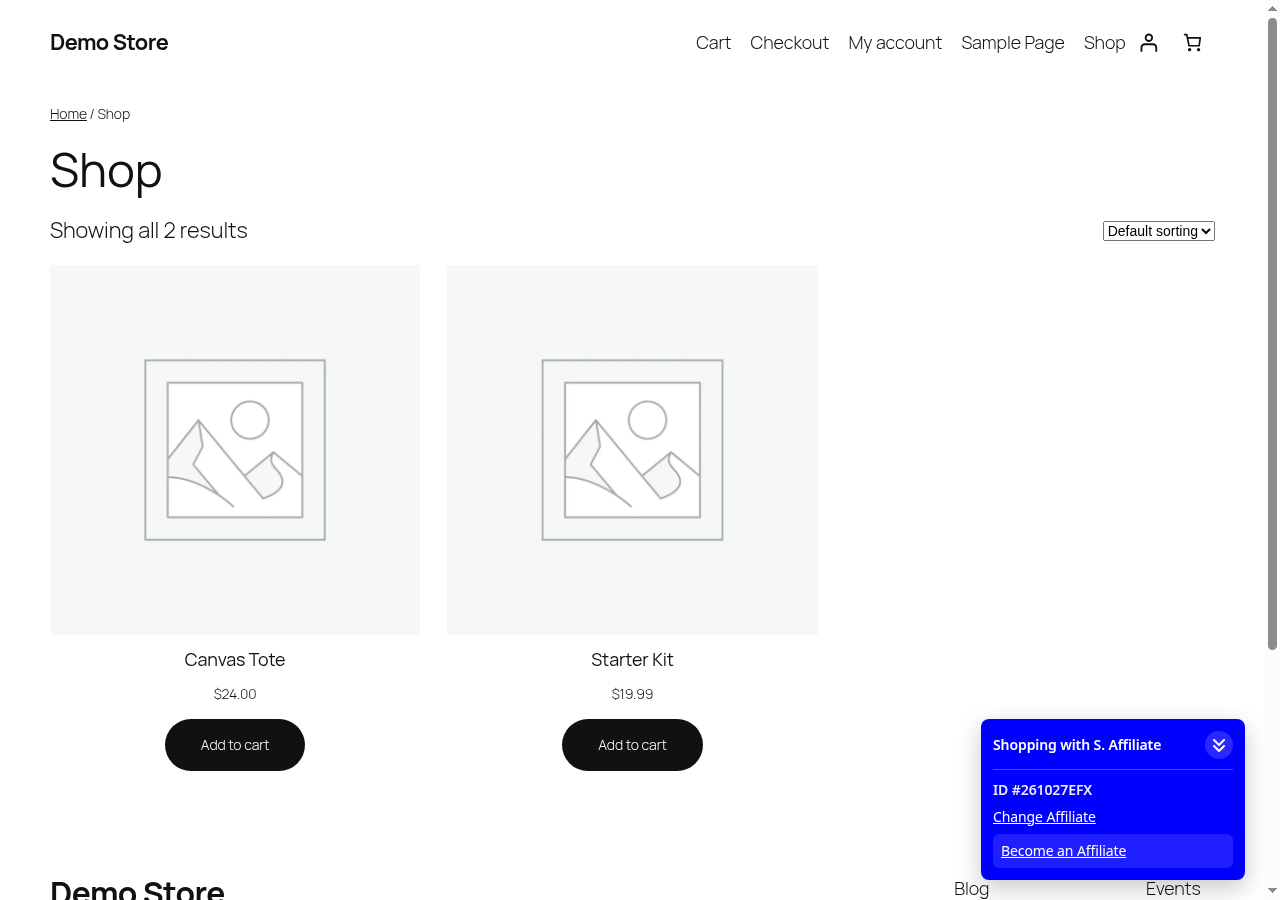
- On your store, use the affiliate lookup in the bottom right corner to search for and pick an affiliate.
- If the panel is collapsed, expand it.
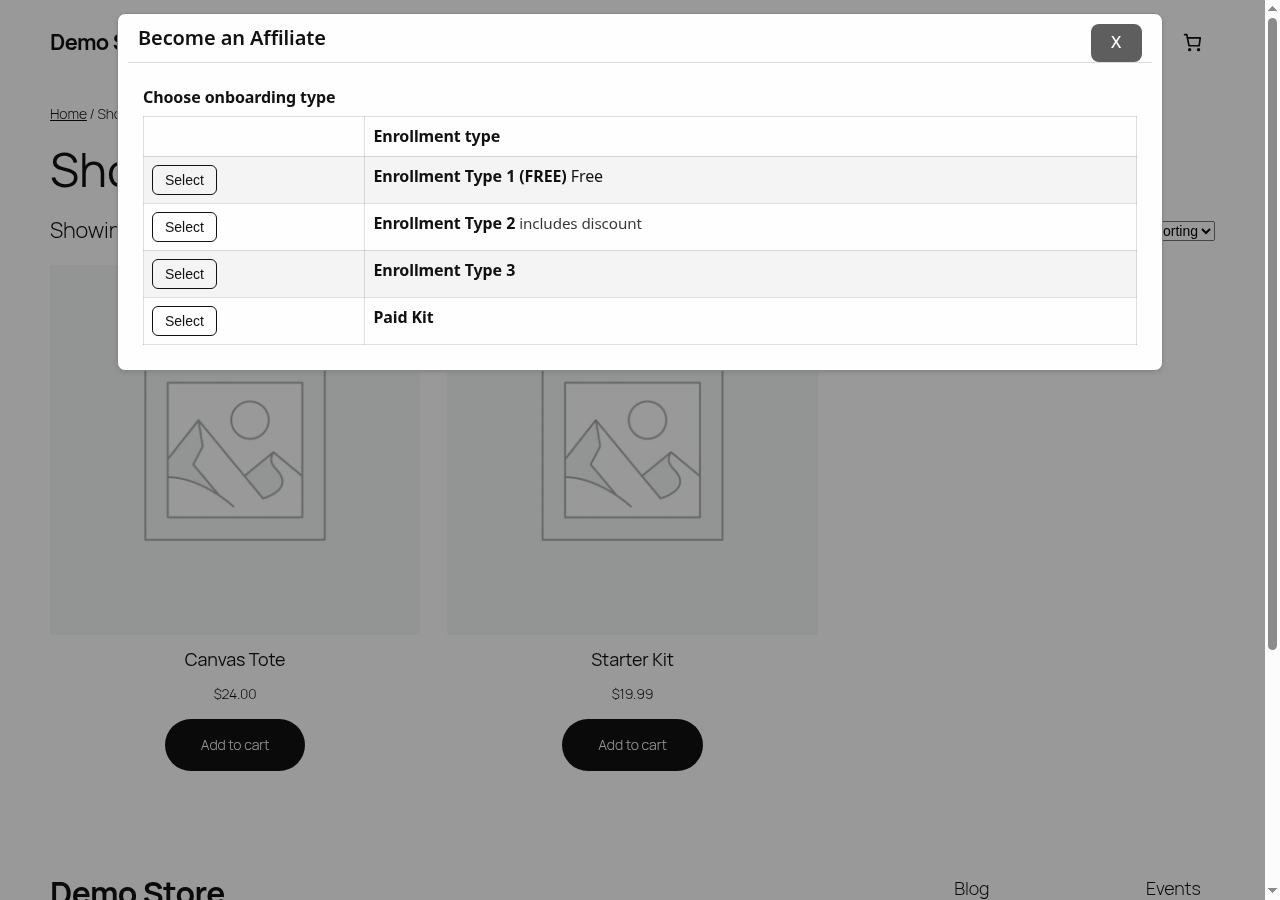
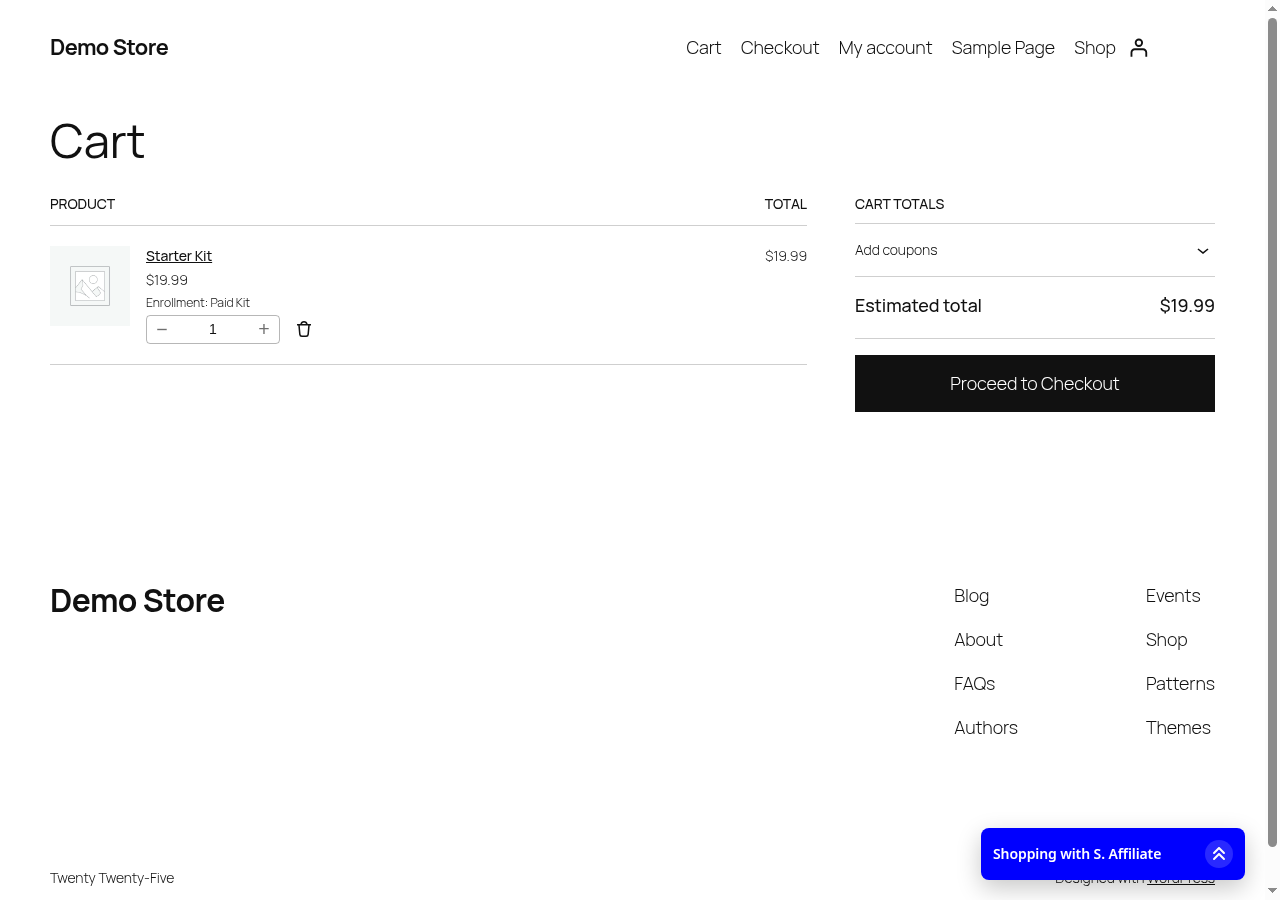
- Click Become an Affiliate.
- Pick an enrollment type.
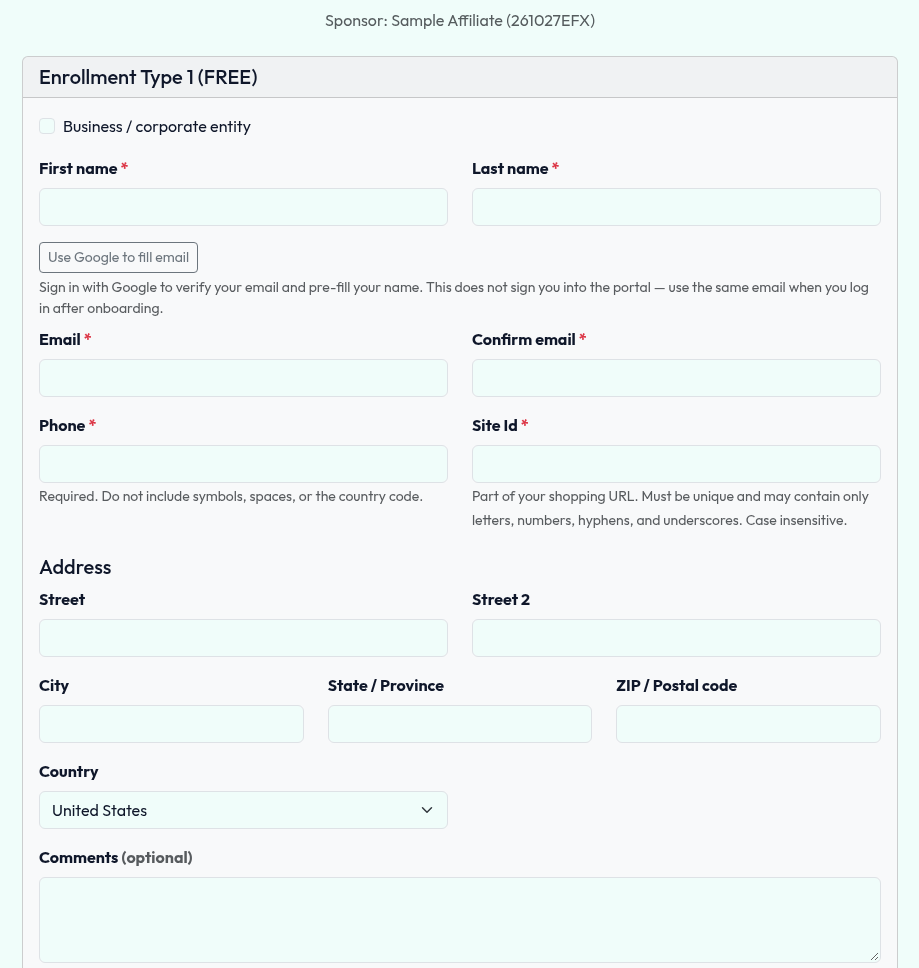
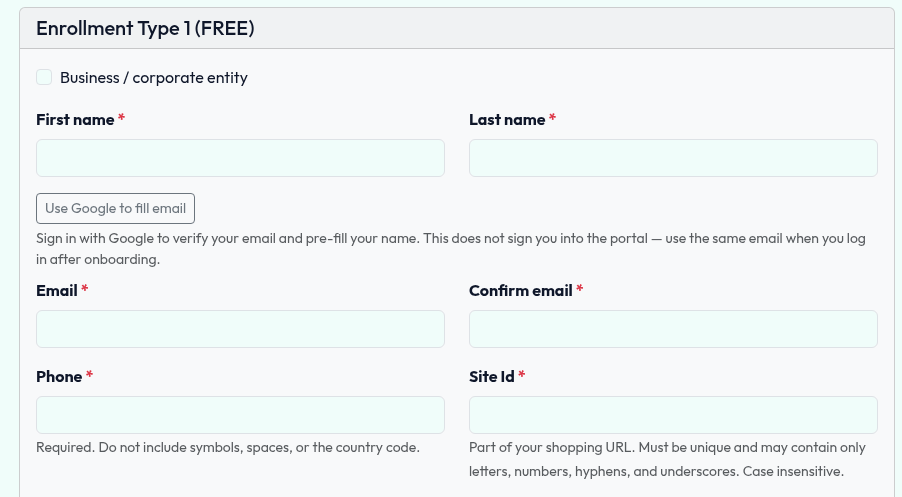
- A free type opens the Join page, with the sponsor shown. The same page also works directly at
/pub/enroll/your-site-id. - A paid type adds the enrollment kit to the WooCommerce cart. The kit products set on that enrollment type must exist in your store.
Add an affiliate yourself
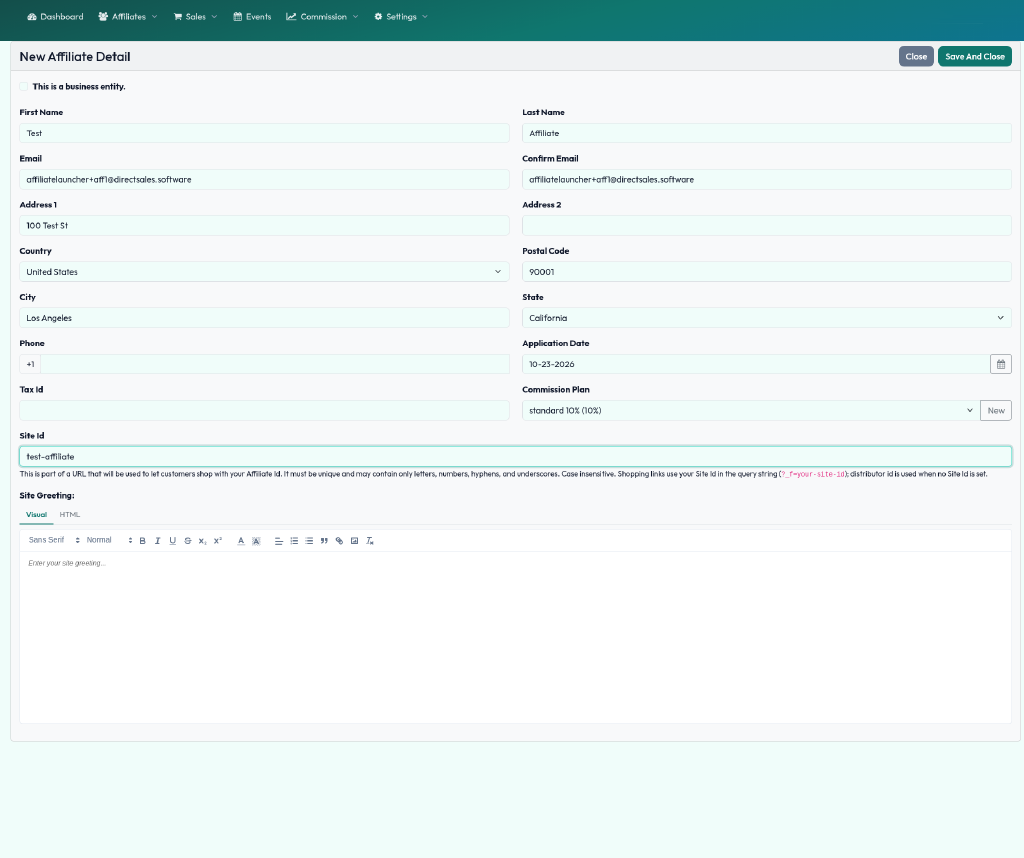
- In AffiliateLauncher, open Affiliates and click Create New Affiliate.
- Fill in the details and pick a commission plan.
- Add a Site Id if you want a readable shopping link such as
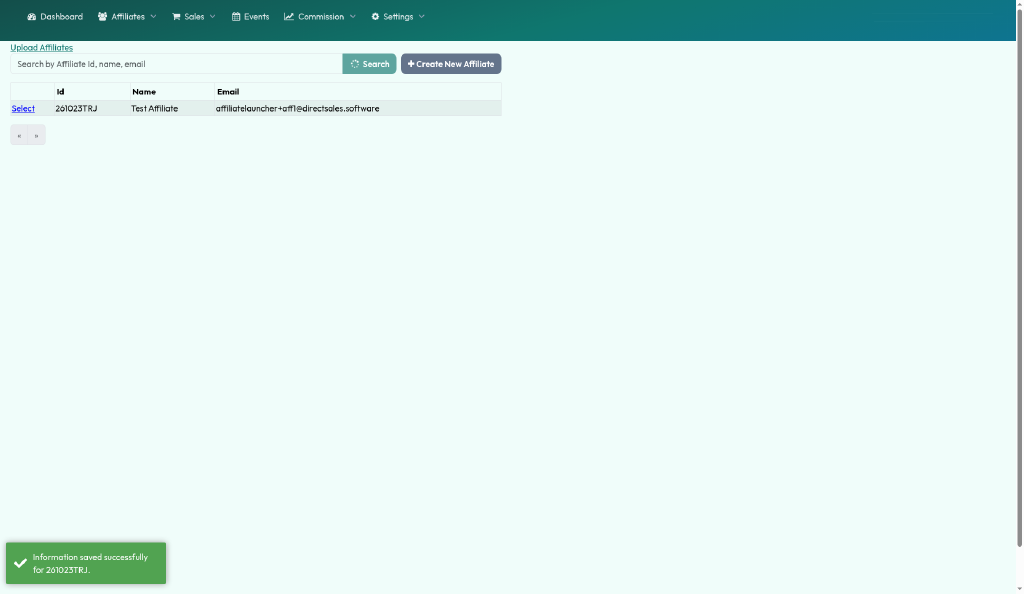
?_f=site-id. Without one, the affiliate ID is used. - Click Save And Close. The roster shows the new affiliate ID.
5. Check sales and commissions
- Open Sales to see synced WooCommerce orders and the affiliate each one is credited to.
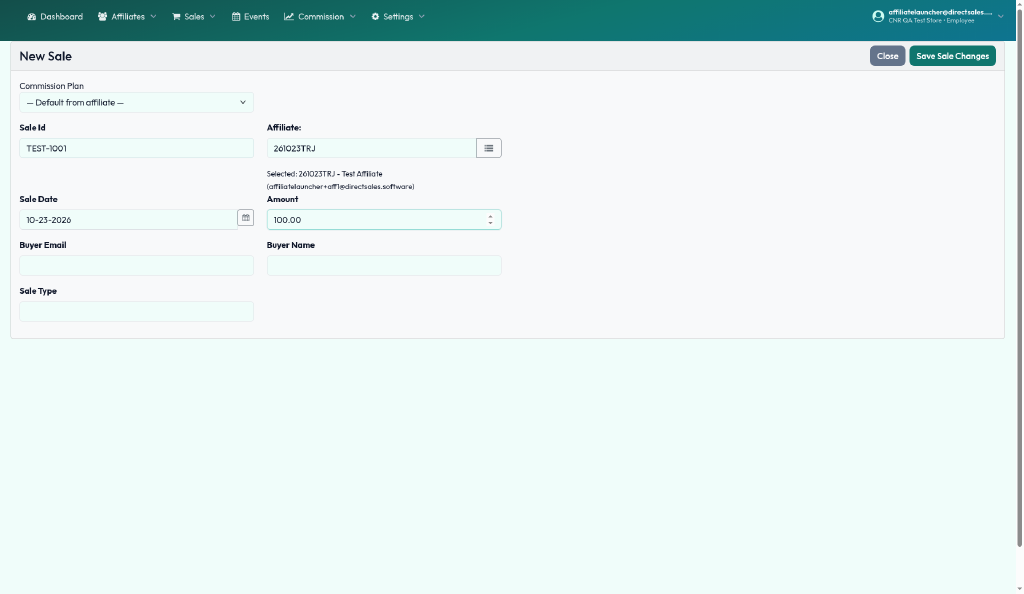
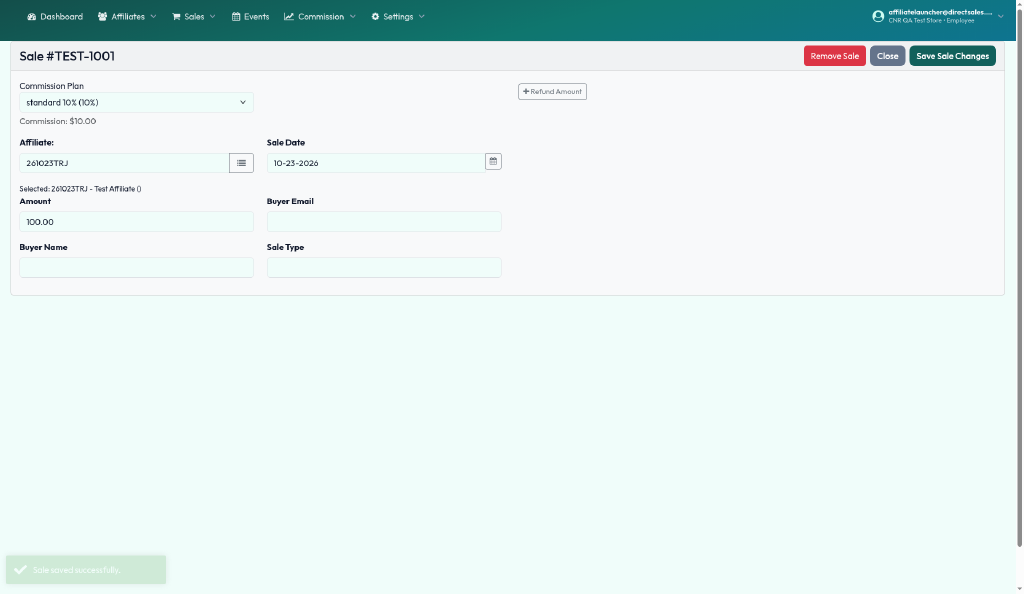
- To test without a store order, add a sale by hand: enter the sale ID, affiliate, date, and amount, then save.
- The saved sale shows the commission from the affiliate's plan.
6. Pay affiliates
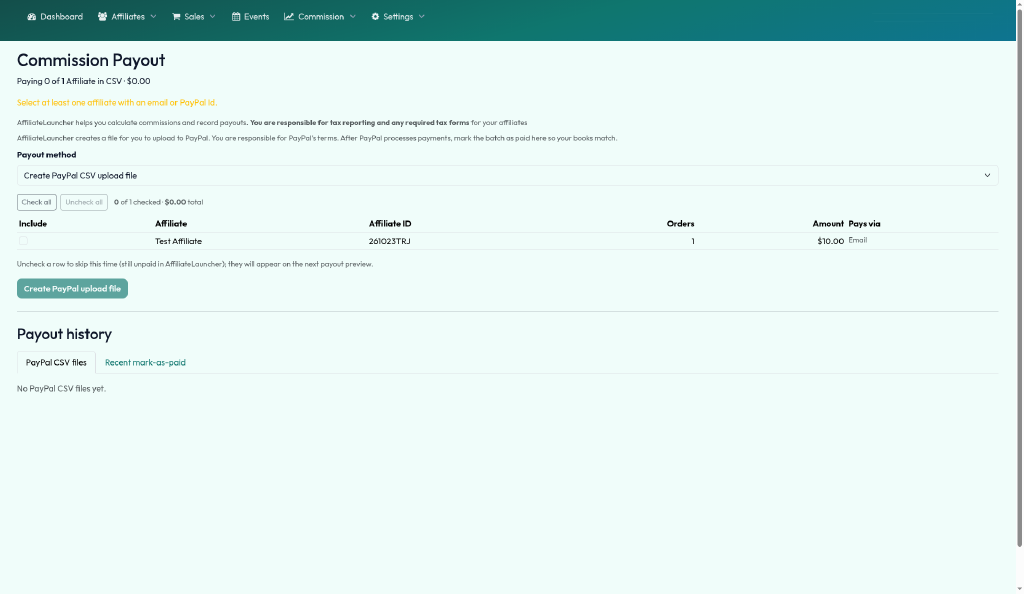
- Open Commission > Payout.
- Check the affiliates to include.
- Choose Create PayPal CSV upload file and download the file.
- Upload the file in PayPal.
- After PayPal processes the payments, mark the batch as paid in AffiliateLauncher.
Get help
- Email affiliatelauncher@directsales.software with your store or company name.
- Post in the plugin support forum on WordPress.org.
- Visit the support page.
- Read the FAQ, or the WooCommerce plugin page for tracking link formats and compatibility.